# VMOS+ Background Setup — Illustrated Guide
If a VM cannot start or closes after you switch away from VMOS+, use this guide to check system restrictions and background settings. Choose one system-setup method, finish the shared battery and background steps, then test a running VM.
Devices that already work normally do not need repeated changes. Select an image to open it at full size. Addresses, pairing codes, and devices shown are recording examples: use the current information on your own phone.
## Video tutorial {#video-tutorial}
Follow the complete video, or pause it and use the illustrated steps below.
[Video tutorial on YouTube](https://www.youtube.com/watch?v=l49X8G5VXbk)
YouTube must be accessible on your network.
## Choose how to configure your phone
| Setup device | Start here |
| --- | --- |
| **Use your phone** | [Prepare your phone by brand](/en/guide/phone-settings), choose an applicable Android 11+ wireless-pairing or Android 14+ system-switch method below, then finish battery and background protection |
| **Use VMOS Assistant** | Open the [VMOS Assistant guide](/en/guide/activation-tool) to download the Assistant, connect the phone and remove supported restrictions; still check the phone's background protection |
Expand Use your phone in the sidebar to choose your brand. Xiaomi / Redmi is further divided into MIUI and HyperOS versions. Use VMOS Assistant contains downloads, connection methods, restriction removal, restoration and feedback.
## What to do first
| Stage | Action |
| --- | --- |
| 1. Prepare | Enable Developer options; for the PC method, also enable USB debugging and authorize the computer |
| 2. Configure system restrictions | Choose one applicable method below |
| 3. Check phone background settings | Remove VMOS+ battery restrictions, allow Autostart/background activity, and lock its Recent apps card where supported |
| 4. Test | Start a VM, switch away, then return and check its actual behavior |
**Choose one system-setup method; you do not need to repeat all three.** After PC setup, still check the phone manufacturer's Autostart and background protection settings.
## 1. Enable Developer options
**Cannot find a menu? See [phone settings by brand](/en/guide/phone-settings) for marked real screenshots from Xiaomi / Redmi, OPPO, realme, vivo, HUAWEI, HONOR and Pixel. These additional captures use Chinese system menus with English instructions.**
The screenshots use a Xiaomi phone in English. On other brands, look under Settings → About phone for the software version or Build number.
### Open About phone or My device
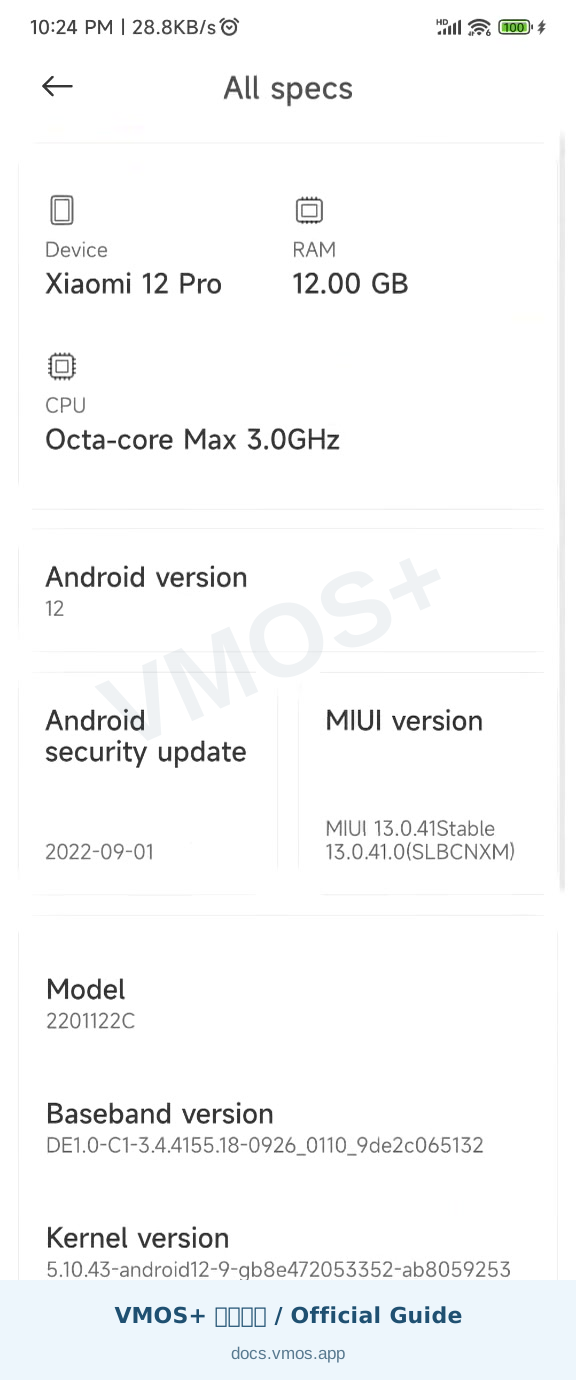
Go to **Settings → My device / About phone → All specs**.
Open My device and All specs in Settings
### Tap the version number repeatedly
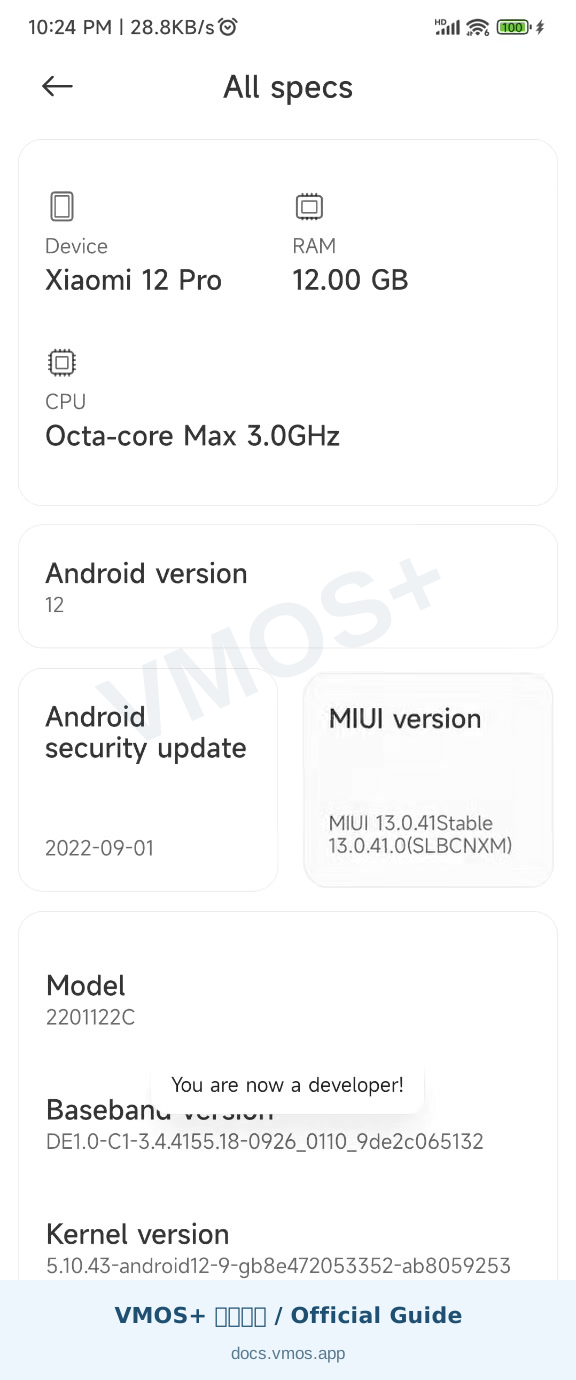
Find MIUI version, OS version, or Build number. Tap it about seven times, completing any identity check requested by the phone, until Developer mode is enabled. If it is already enabled, continue.
Tap the software version to enable Developer mode
### Open Developer options
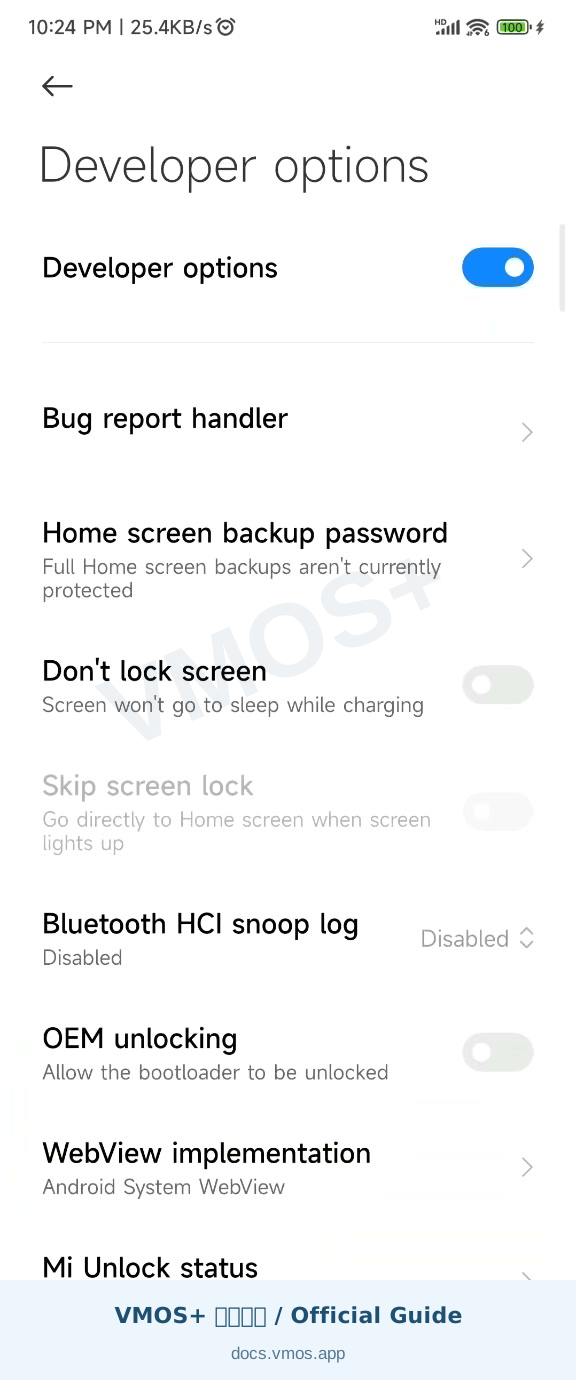
On Xiaomi, this is usually under **Settings → Additional settings → Developer options**. You can also search Settings for “Developer options.” Check that its main switch is enabled.
Find and open Developer options
## 2. Enable USB debugging for the PC method
If you are using a phone-only method, continue to that method below. For the PC Assistant, finish this section first.
### Enable USB debugging and confirm
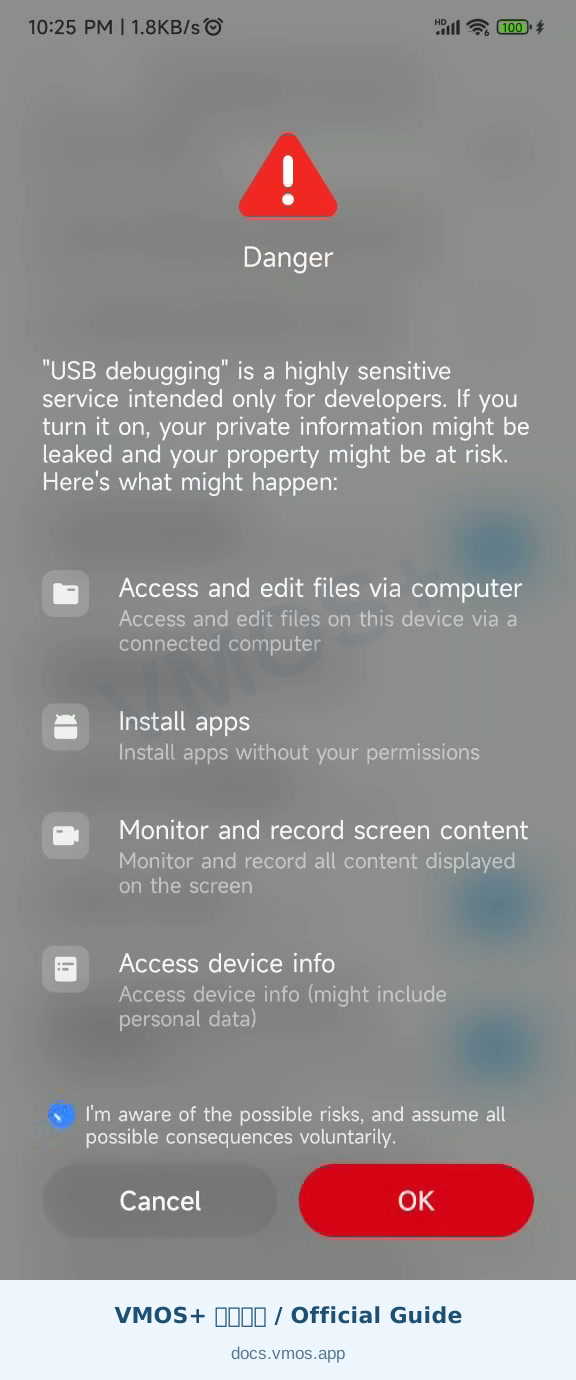
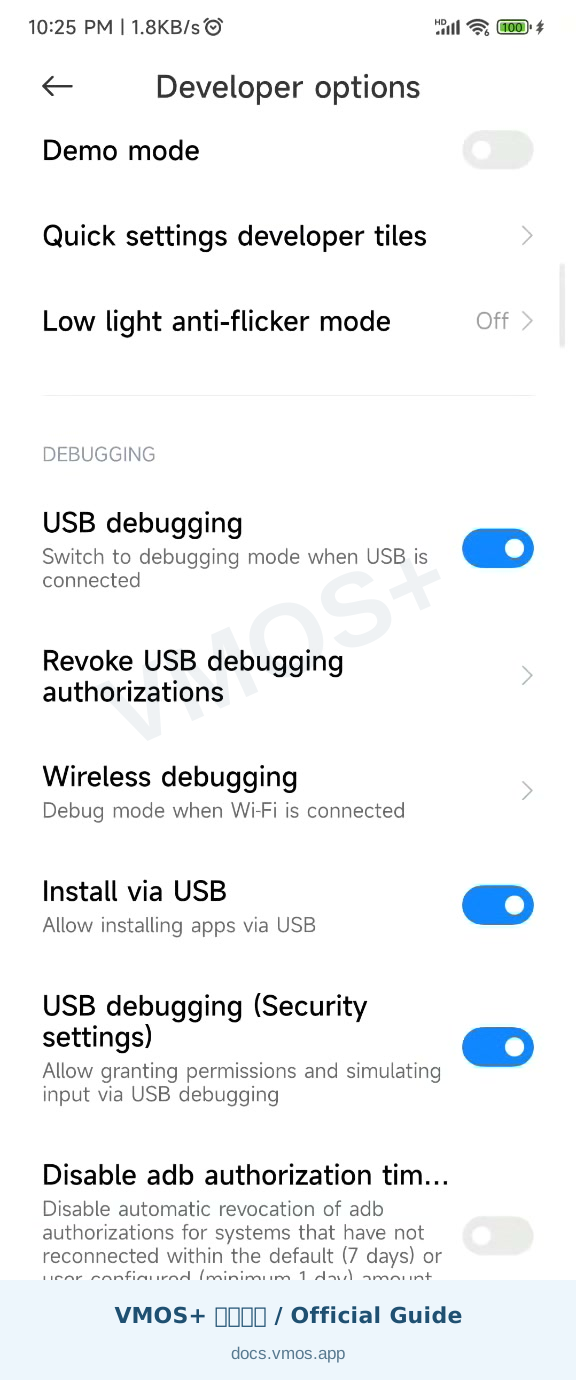
In Developer options, turn on **USB debugging**. Read and confirm the prompt, waiting for any required countdown. OEM unlocking is not required.
Confirm the USB debugging prompt
Return to the page and confirm that **USB debugging remains on**.
Check that USB debugging is enabled
### Connect and authorize the computer
Connect the phone with a USB cable that supports data transfer and keep it unlocked. When “Allow USB debugging?” appears, verify the computer and allow it. Only select “Always allow” for a computer you trust.
If no prompt appears or the phone is missing from the device list, check the cable connection and data support, try File transfer mode, and try another USB port. Windows may need the manufacturer's USB driver. The Assistant also provides a step-by-step USB guide by phone brand.
## 3. Choose one system-setup method
### Method A: Android 11+ wireless pairing on the phone
Use this method when the phone provides **Wireless debugging → Pair device with pairing code** and VMOS+ provides an Android 11+ setup entry. If the entry is unavailable or pairing keeps failing, choose an applicable Method B or C.
1. Open the background setup page in VMOS+ and choose Android 11+.
Open Android 11+ background setup in VMOS+
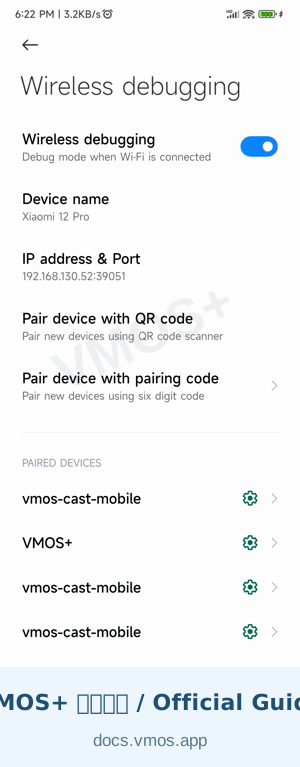
2. Open Developer options, enable **Wireless debugging**, accept the system prompt, and open its details.
Enable Wireless debugging in Developer options
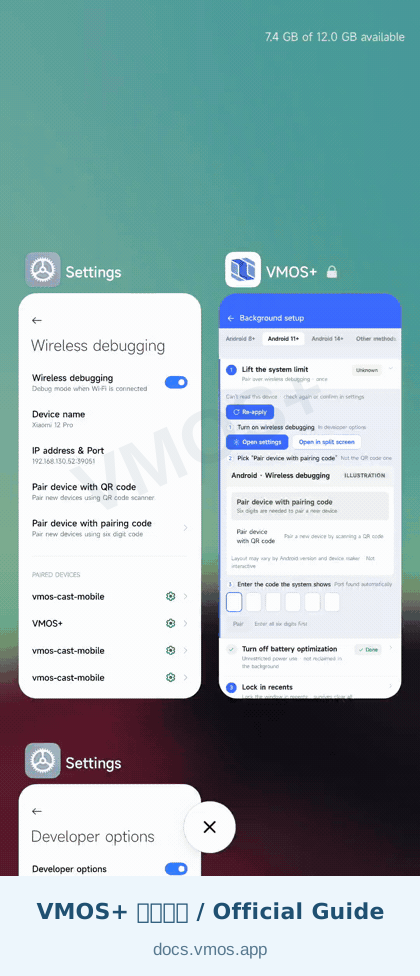
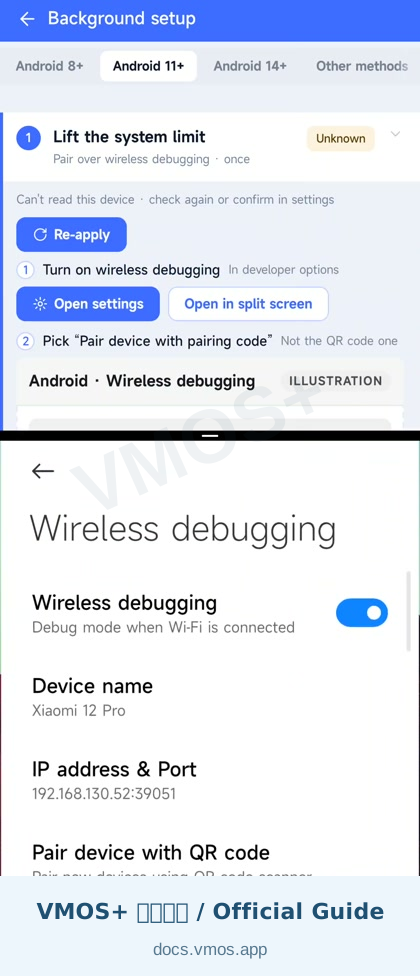
3. Open split screen so that VMOS+ and Wireless debugging remain visible together. The looping animation below shows the actual steps on a Xiaomi phone.
**Open Recent apps → press and hold the VMOS+ card → tap the split-screen icon (two stacked rectangles) → select Settings with Wireless debugging open.** With gesture navigation, swipe up from the bottom and hold to open Recent apps. With three-button navigation, tap the Recents button.
Animation: open Recent apps, select split screen, then choose Settings
**The finished layout: VMOS+ at the top, Wireless debugging at the bottom.** Open the pairing-code dialog in the bottom pane and enter its information into VMOS+ in the top pane. Keep the dialog open while pairing.
Finished split screen: VMOS+ above Wireless debugging
On some phones, split screen is in the app icon menu. If VMOS+ provides an “Open in split screen” button, you can use that shortcut. If split screen is unavailable, try the phone's floating window feature or use the PC method.
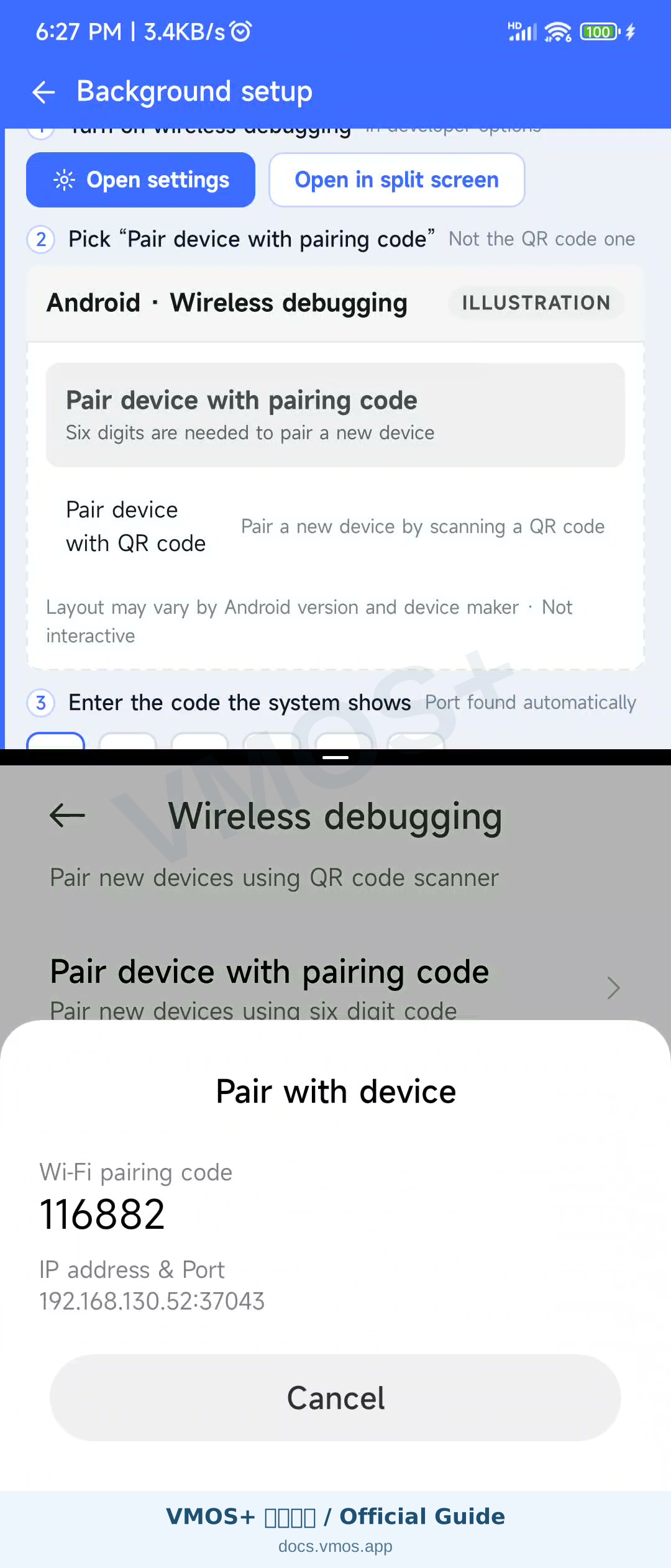
4. Select **Pair device with pairing code**. Read the current address, port, and six-digit pairing code.
Read the current pairing information
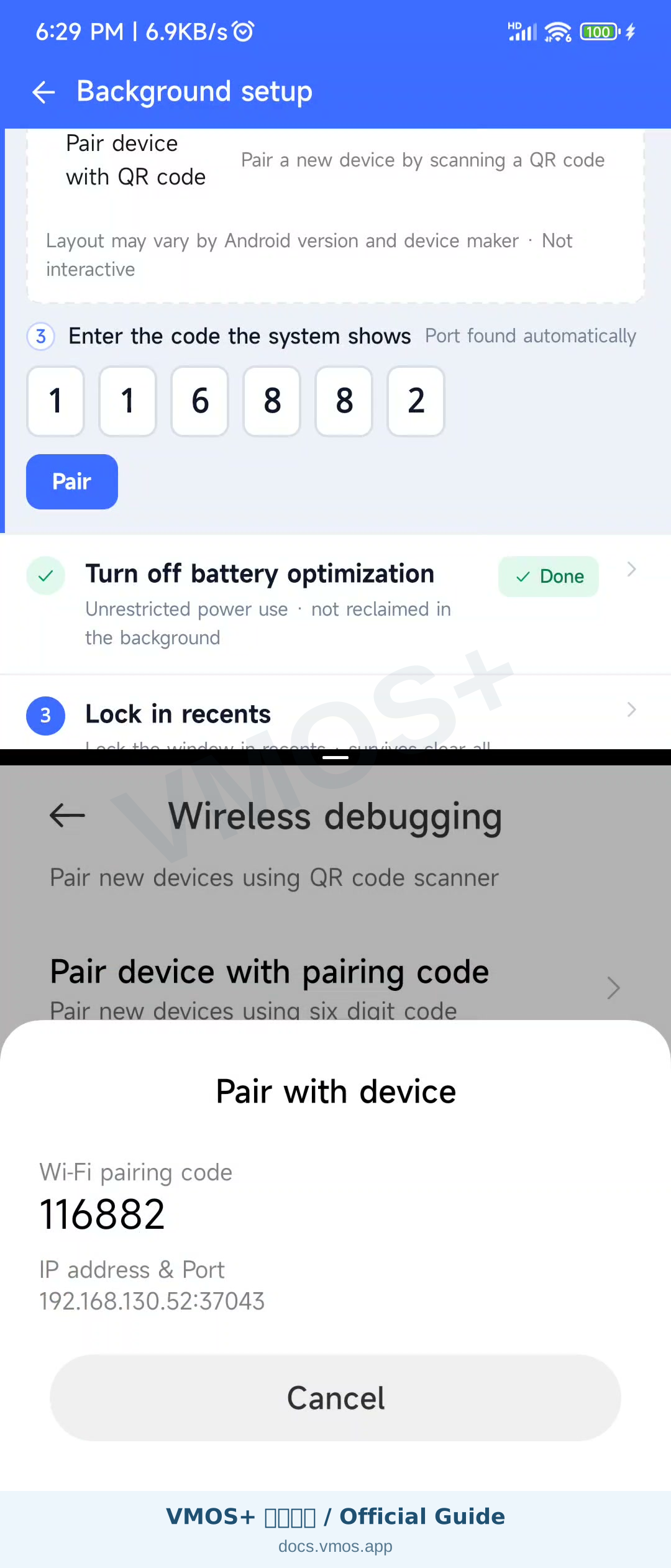
5. Enter the current information into the corresponding VMOS+ fields and confirm. The pairing port may differ from the connection port on the main Wireless debugging page. Generate a new code if it expires.
Enter the current pairing information in VMOS+
6. Return to background setup and check the actual result. Continue when it reports that setup is complete. If it reports “Setup incomplete,” get a new code and retry; if it keeps failing, use the PC method.
Next, complete the shared [battery and background settings](#phone-background).
### Method B: Android 14+ system switch
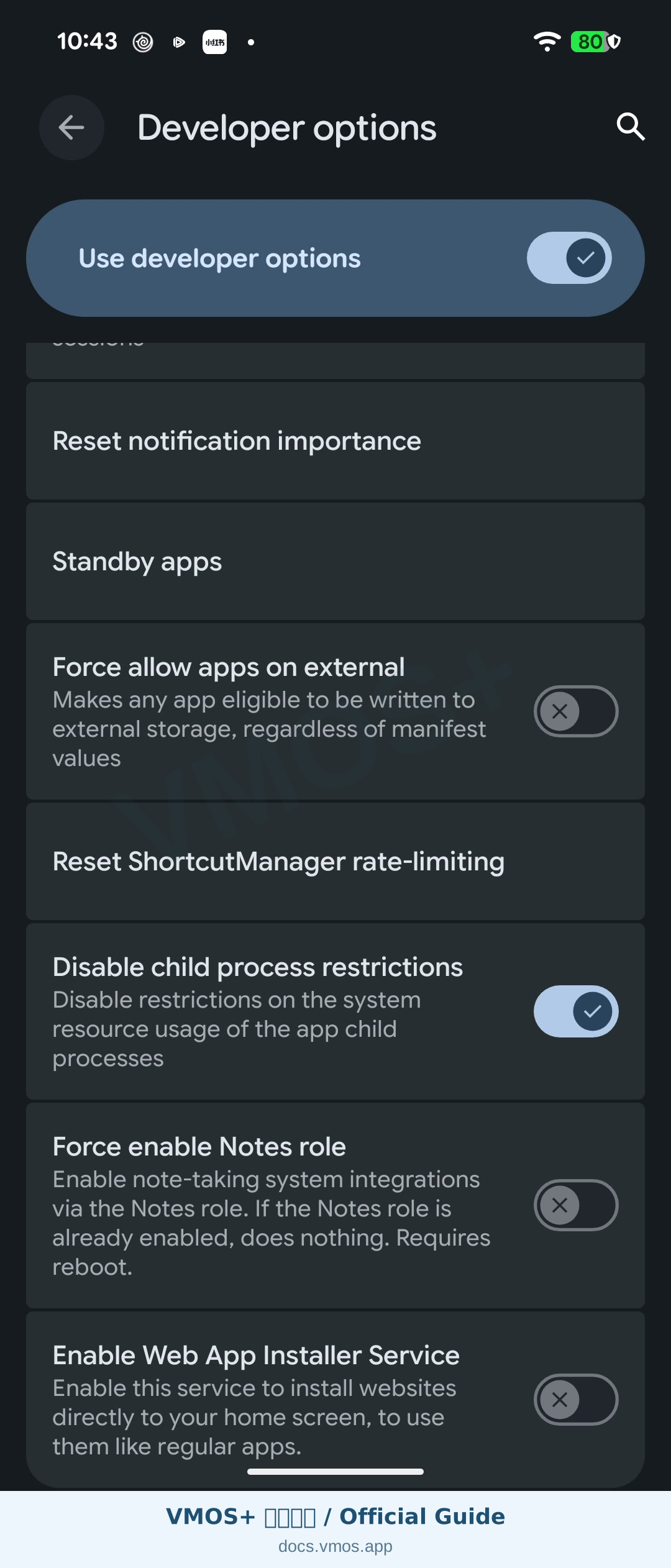
Use this method if Developer options provides **Disable child process restrictions**, or the equivalent switch. The recording demonstrates Android 17; availability and wording vary by phone.
1. In VMOS+ background setup, choose Android 14+ and open Developer options, or open Developer options from Settings.
2. Find the switch that disables child process restrictions. **Turn it on** to stop the system from applying those restrictions.
Enable the switch that disables child process restrictions on Android 17
3. Return to VMOS+ and check the result again. Do not substitute unrelated options under “Background process limit.”
4. Continue with the shared [battery and background settings](#phone-background). If the switch is absent, use another method supported by your phone and the app's capability checks.
### Method C: PC Assistant — Remove restrictions
See the [activation tool page](/en/guide/activation-tool) for PC downloads and installation instructions.
> The four-item checklist and “Remove restrictions” flow below are for Assistant 0.1.4 and later. If your installed Assistant does not show this interface, download the latest version from the activation tool page first.
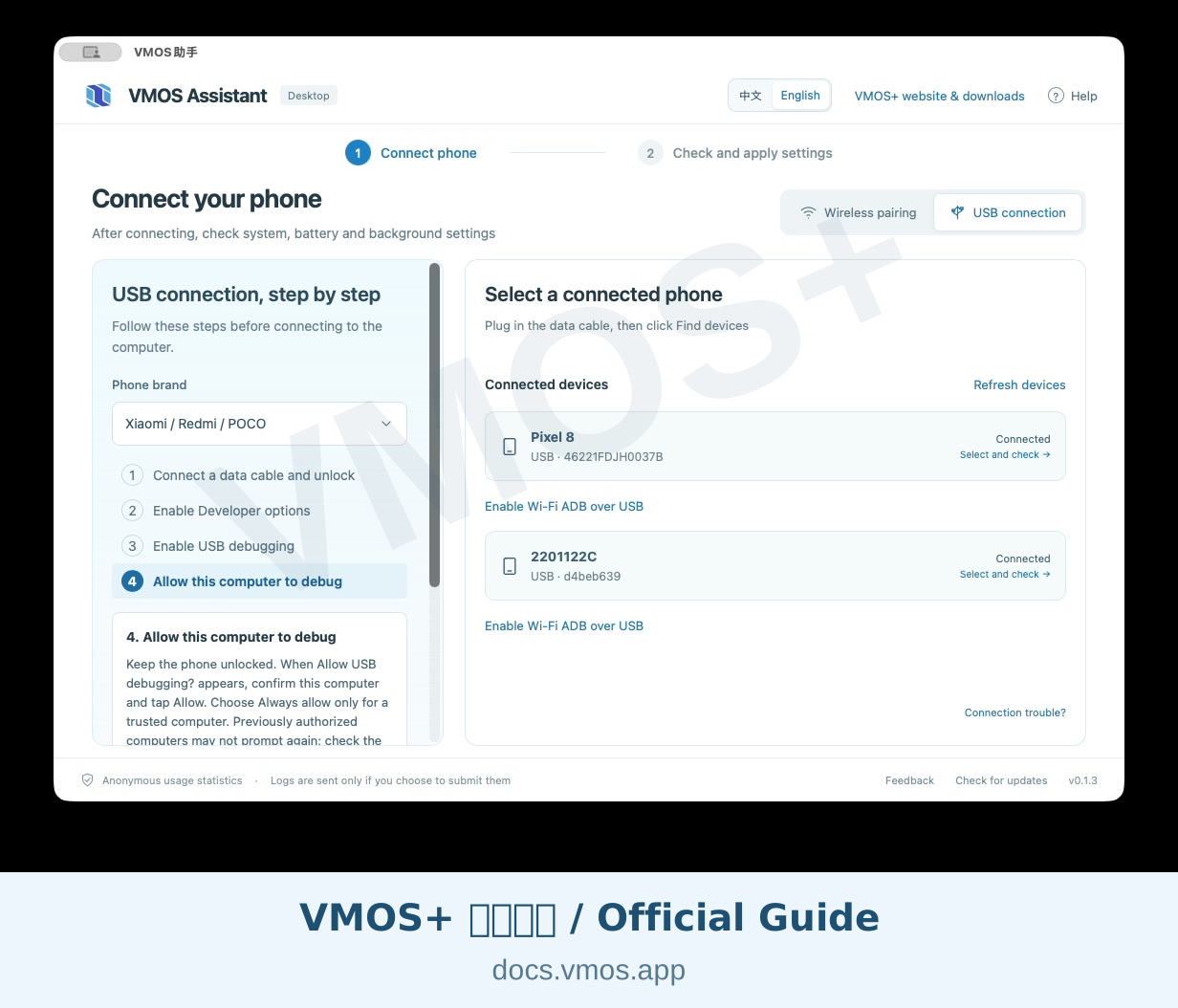
1. After enabling USB debugging and authorizing the computer, choose the USB connection in the Assistant, refresh the list, and select your phone. Check the model and Android version.
Refresh the USB list and select your phone
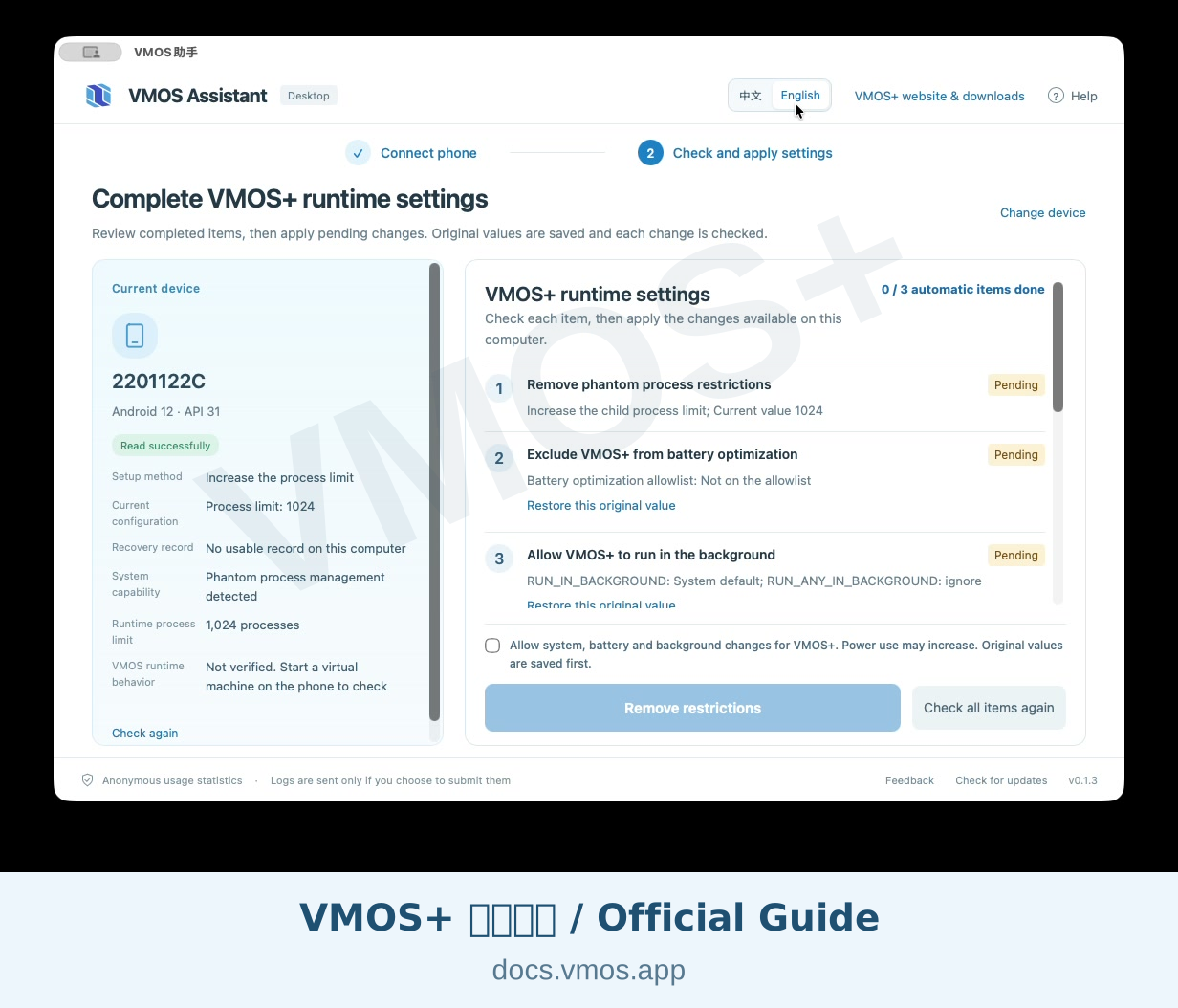
2. Review the four items: phantom process restrictions, VMOS+ battery optimization, background activity permissions, and manufacturer background protection. Each item reports its own pending, complete, or phone-action status.
Review the pending automatic items
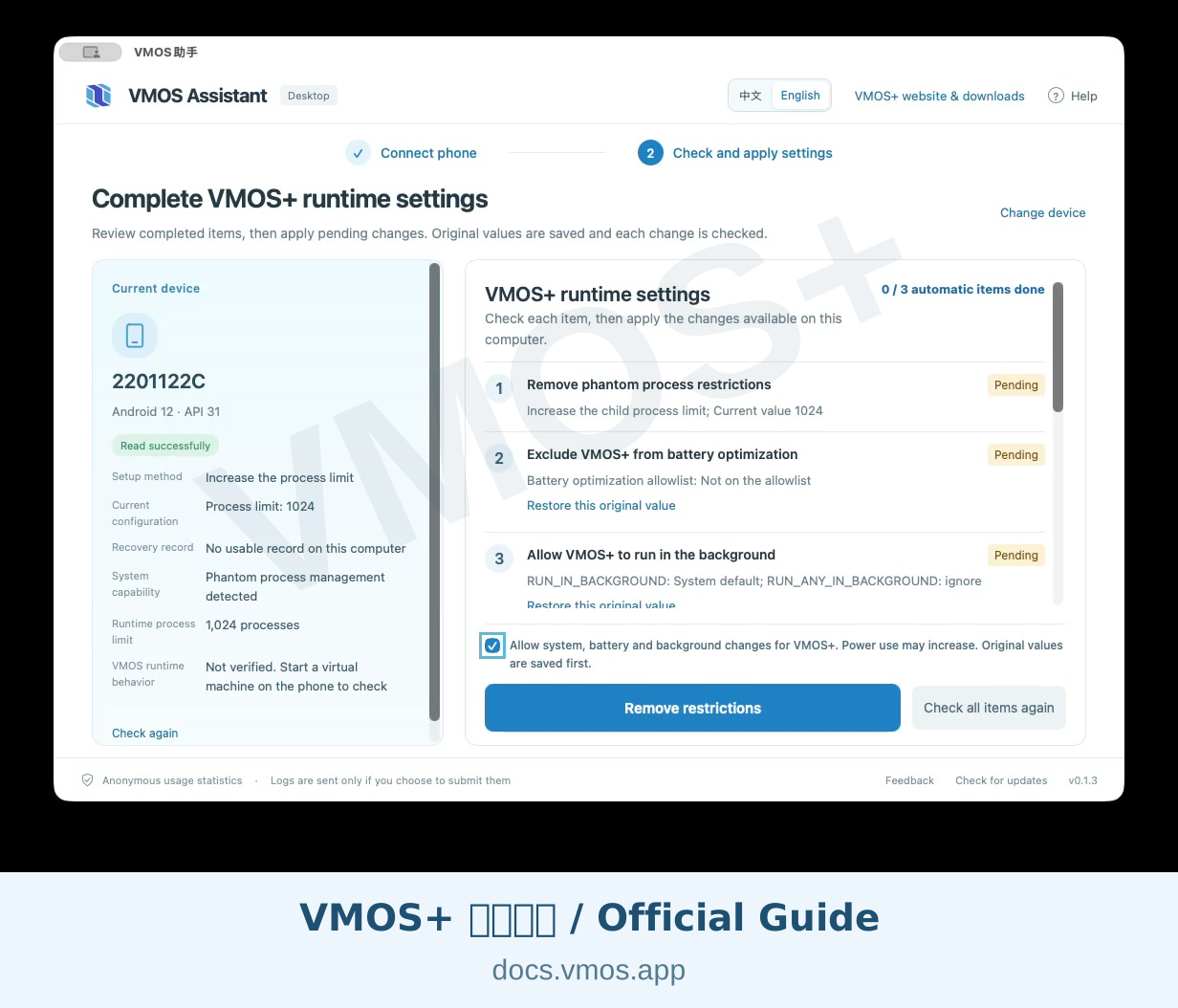
3. Read the explanation, select the confirmation checkbox, and click **Remove restrictions** at the bottom. The Assistant saves previous values, processes eligible pending items in order, and skips completed ones.
Confirm and use the bottom Remove restrictions button
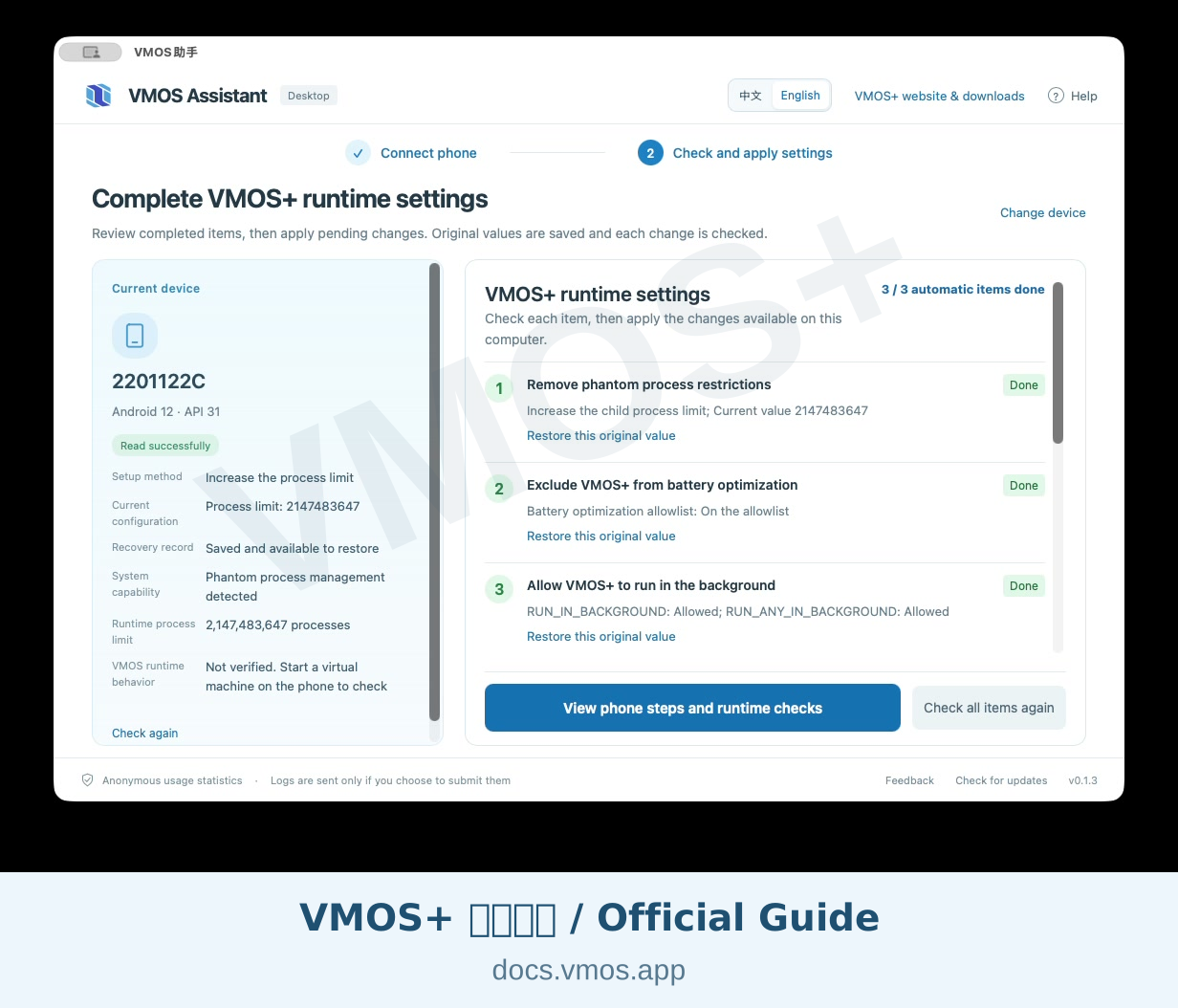
4. Wait for completion and review each readback result. Follow any item that still requires phone action or reports a failure.
Review the completed settings and readback results
On Android 17, use the Developer options switch in Method B for child process restrictions. “2/2 automatic items complete” does not mean that the PC also completed this phone-only step. The number of automatic items depends on the detected capabilities.
5. Expand the manufacturer background protection item and complete the phone checks below. To undo an individual PC change, use its restore option; restoration depends on the original values saved on that computer.
## 4. Battery and background settings {#phone-background}
**Check this section after any of the three methods.** Do not repeat battery or background permission changes already completed by the PC. Manufacturer Autostart and Recent apps protection may still need manual confirmation. The examples below use Xiaomi; follow the equivalent menus on your phone.
### Remove VMOS+ battery restrictions
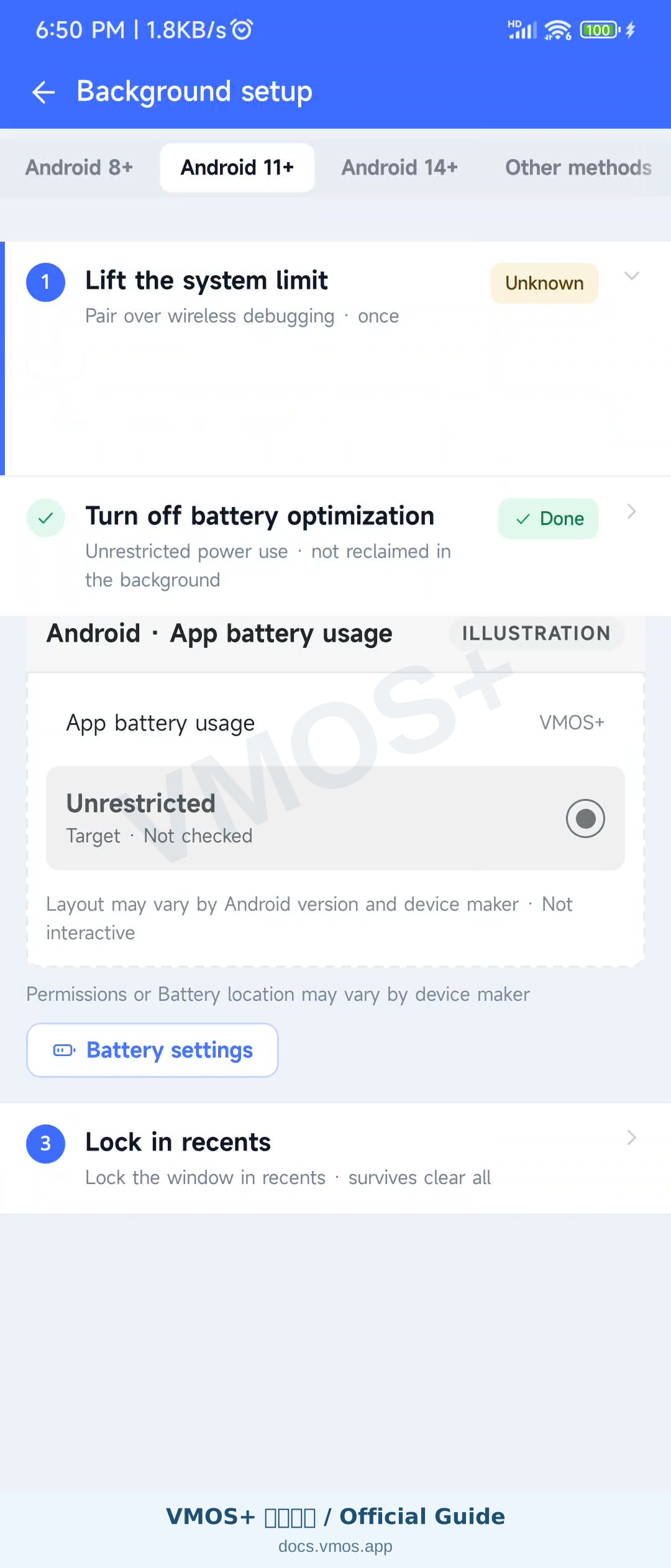
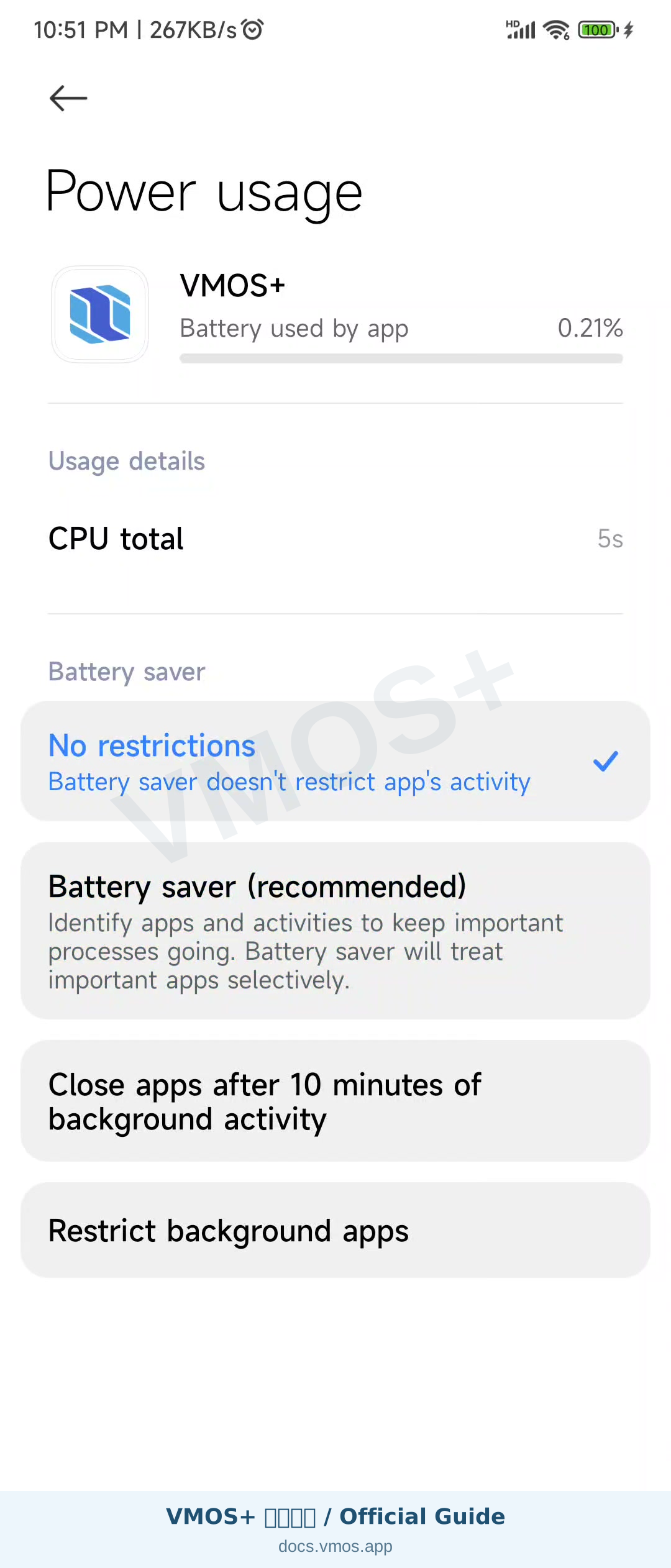
Long-press the VMOS+ icon and open App info, or go through Settings → Apps → VMOS+. Open Battery saver / Battery and select **No restrictions**. Other phones may offer “Don't optimize” or “Allow background usage.” This changes the battery policy for VMOS+.
Set the VMOS+ battery policy to No restrictions
### Allow Autostart and background activity
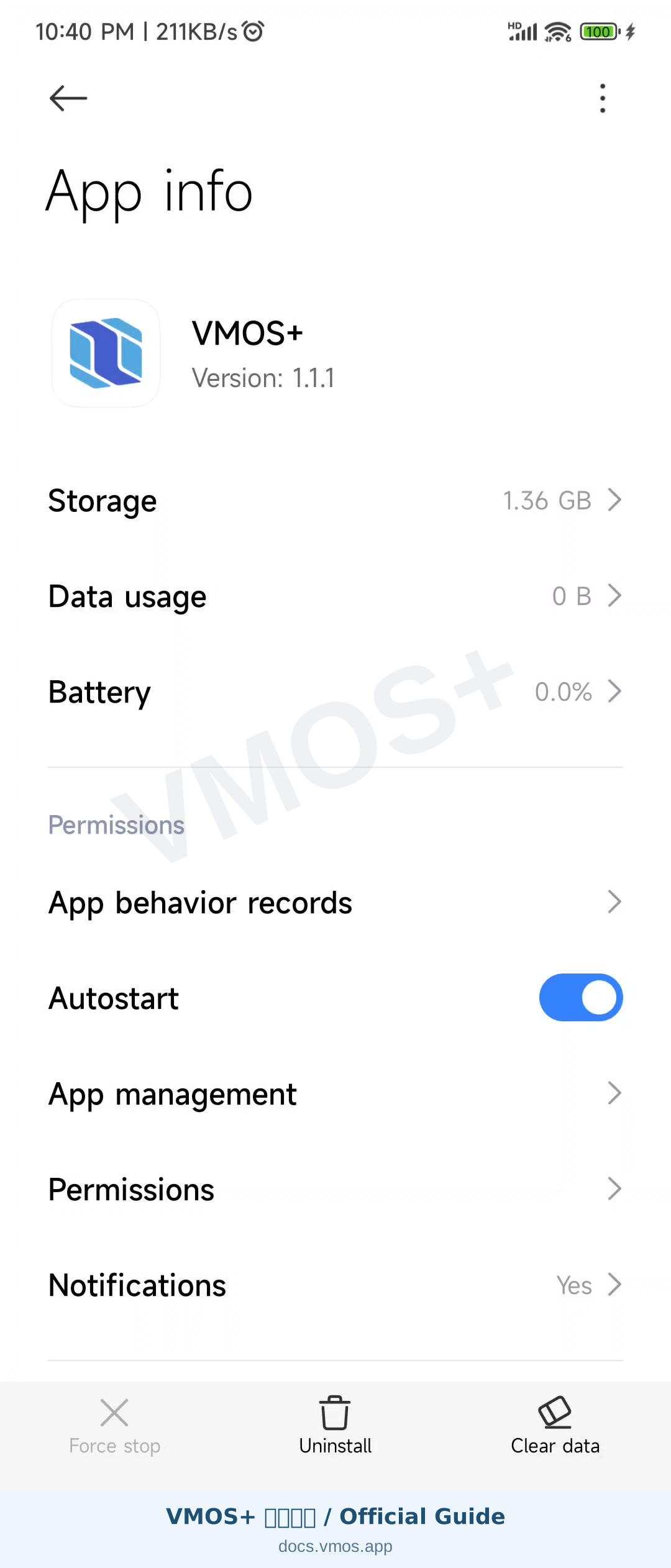
Enable **Autostart** in the VMOS+ app settings and allow background activity where provided. Confirm any manufacturer prompt. On Huawei/Honor, App launch management may require manual management with automatic launch, secondary launch, and background activity enabled.
Enable VMOS+ Autostart in the phone settings
### Lock the Recent apps card
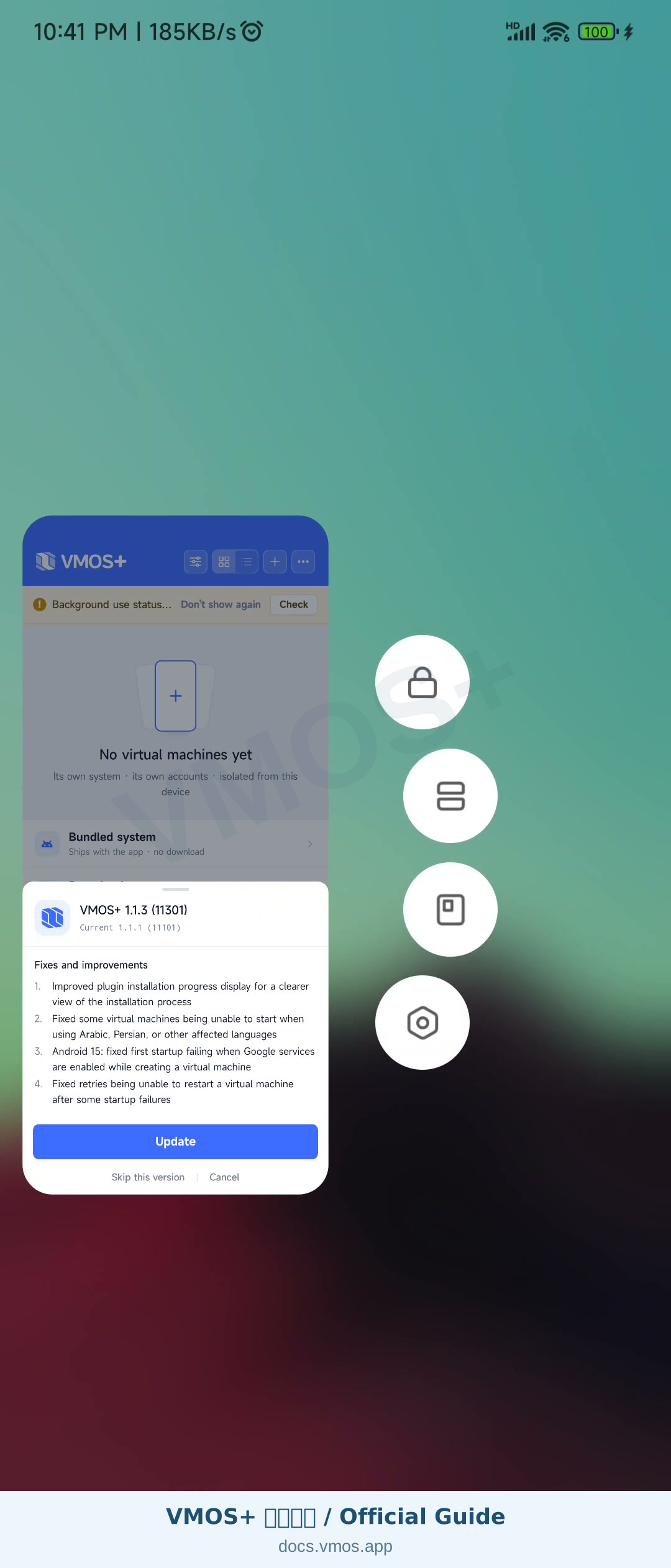
Open VMOS+, enter Recent apps, long-press its card, and choose the lock icon. Some phones use a downward swipe or a menu. Check for the lock indicator afterward.
Lock the VMOS+ card in Recent apps
Pixel and some stock Android phones do not provide a manufacturer task lock. Skip it if unavailable, and check the app's background battery permissions instead.
## 5. Test an actual VM
1. Return to VMOS+ and recheck the settings. Follow any remaining pending item.
2. Start a VM and confirm that its system runs normally.
3. Go to the phone's Home screen or another app, wait, and return to VMOS+ to check whether the VM is still running normally.
A setup or readback status confirms the corresponding configuration only. Available memory, system power management, and manufacturer policies can still affect operation; assess the result on your own device.
If it still closes, recheck battery restrictions, Autostart, and the task lock. Use “Report a problem” in the Assistant with your phone model, Android version, and the step where it failed. Attach logs only if you choose to.