
English
vivo · Funtouch OS 10.5: Developer options and USB debugging
Captured on vivo Y52s, running Funtouch OS 10.5 · Android 10, on 2026-10-29. Menu names may differ on other models or software versions.
The box marks the target for each step. Click any image to open its watermarked full-size version. Developer options and USB debugging were already enabled on the captured device; confirm their state without turning them off first. The screenshots use Chinese system menus; the instructions include the exact Chinese labels.
Full route: Settings → System management → About phone → Software version number; Settings → System management → Developer options → USB debugging
INFO
This phone runs Android 10. This page shows USB debugging; do not look for the Android 11+ wireless-pairing entry on it.
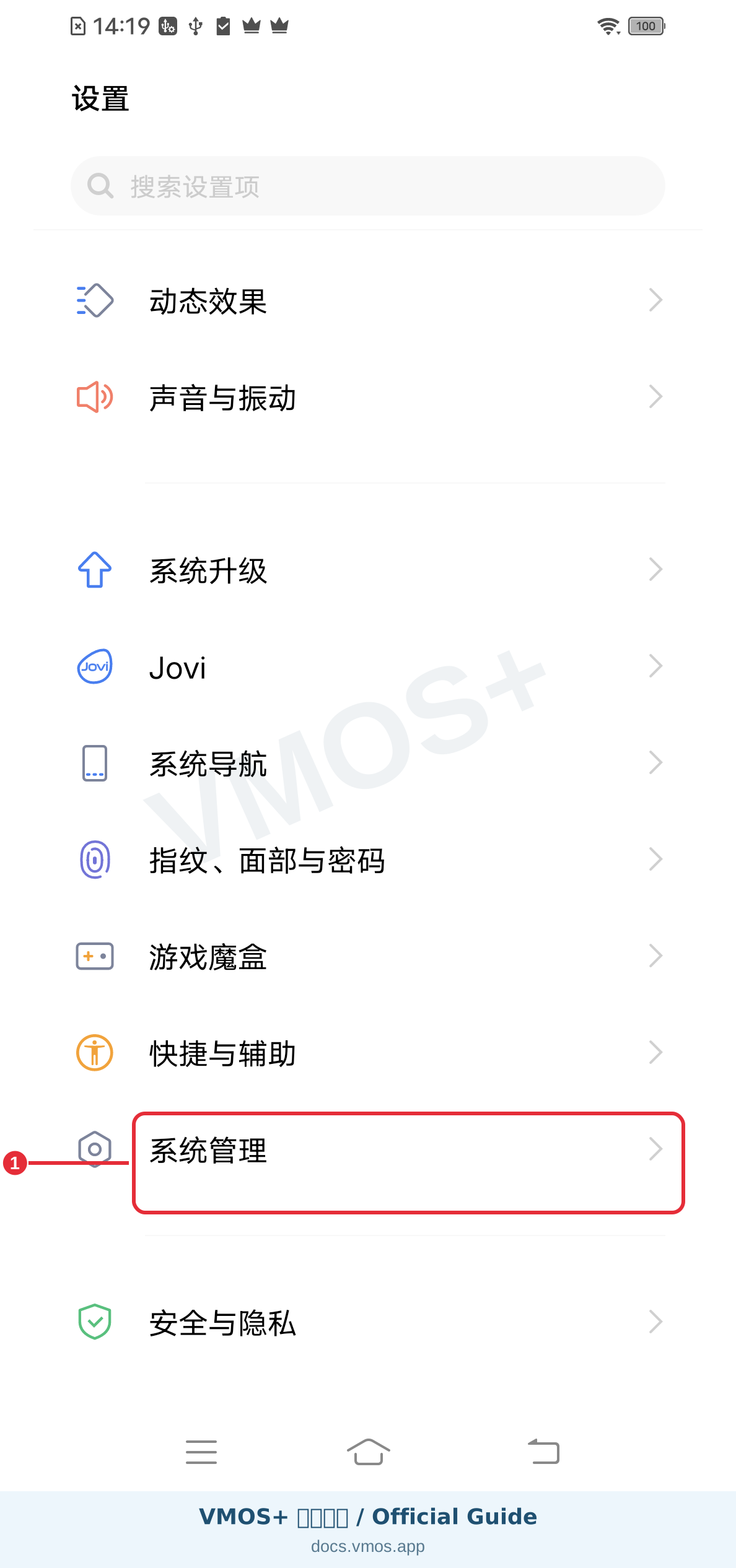
1. Open System management
Scroll down in Settings and tap 系统管理 (System management).
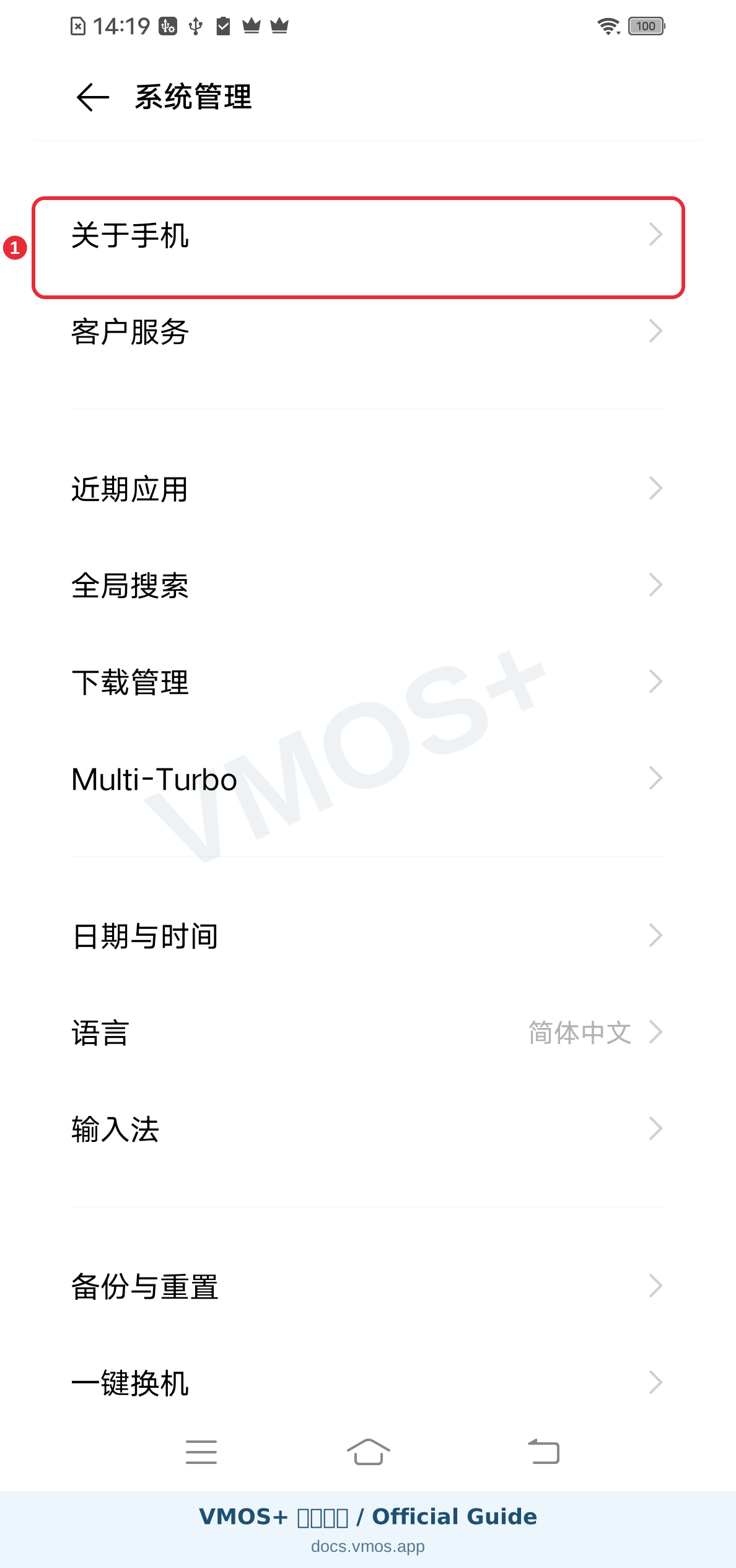
2. Open About phone
Tap 关于手机 (About phone) at the top of System management.
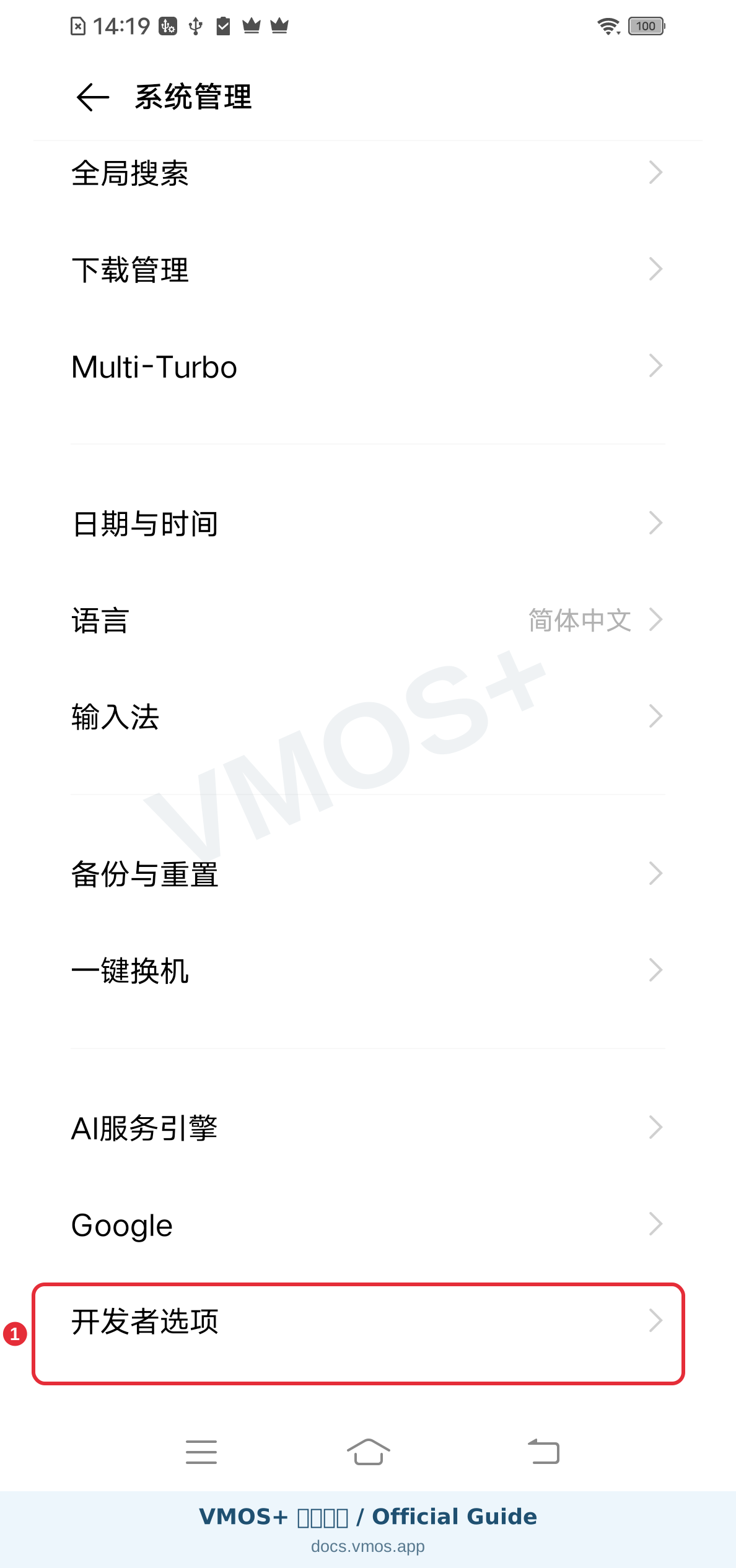
3. Return to System management and find Developer options
For first-time setup, tap 软件版本号 (Software version number) about seven times in About phone and follow the verification prompt. Return to System management, scroll to the bottom and tap 开发者选项 (Developer options). If already enabled, enter it directly.
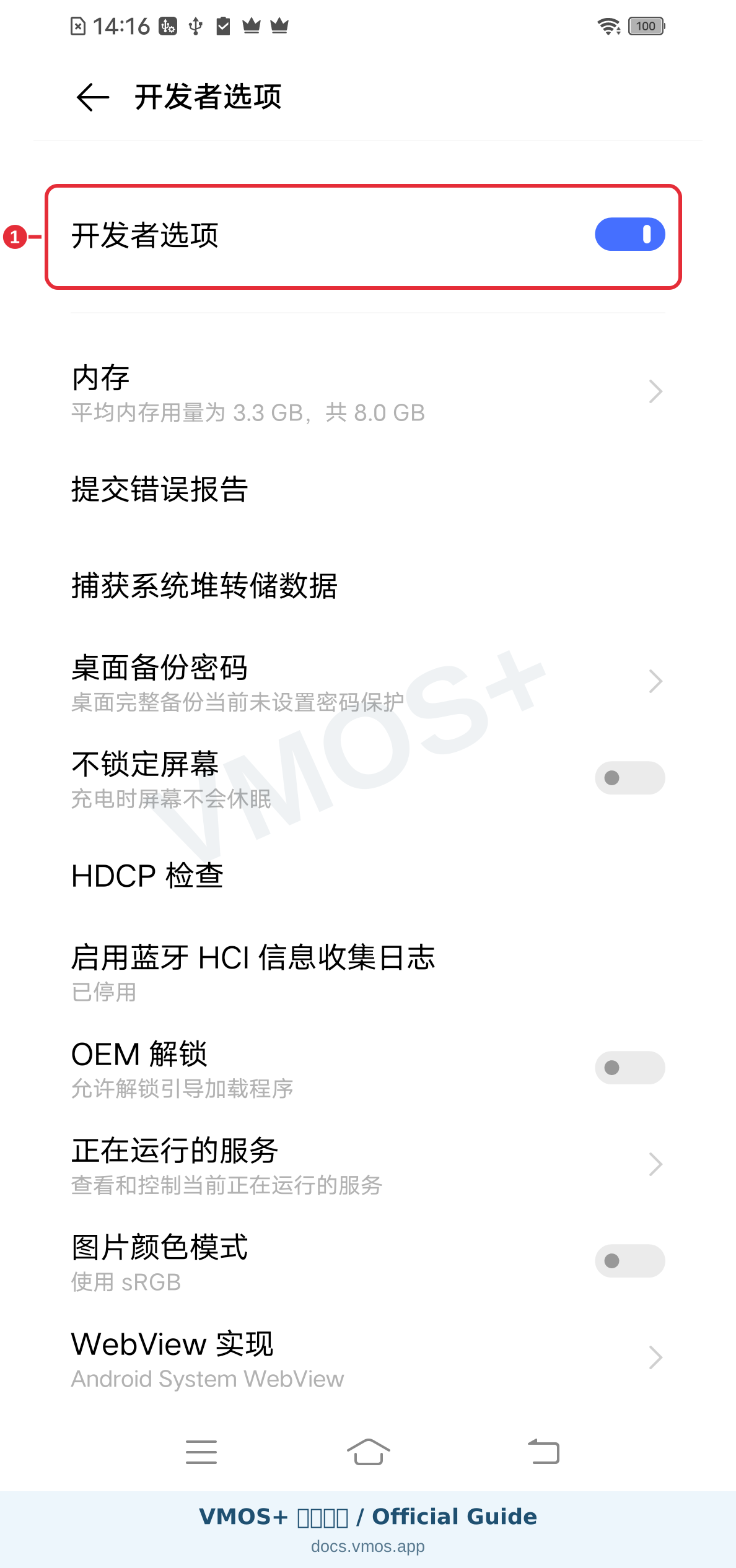
4. Keep Developer options on
Confirm that the highlighted master switch is on. It is already on in this capture; leave it on. You do not need to turn it off and start over.
5. Find USB debugging and confirm it is on
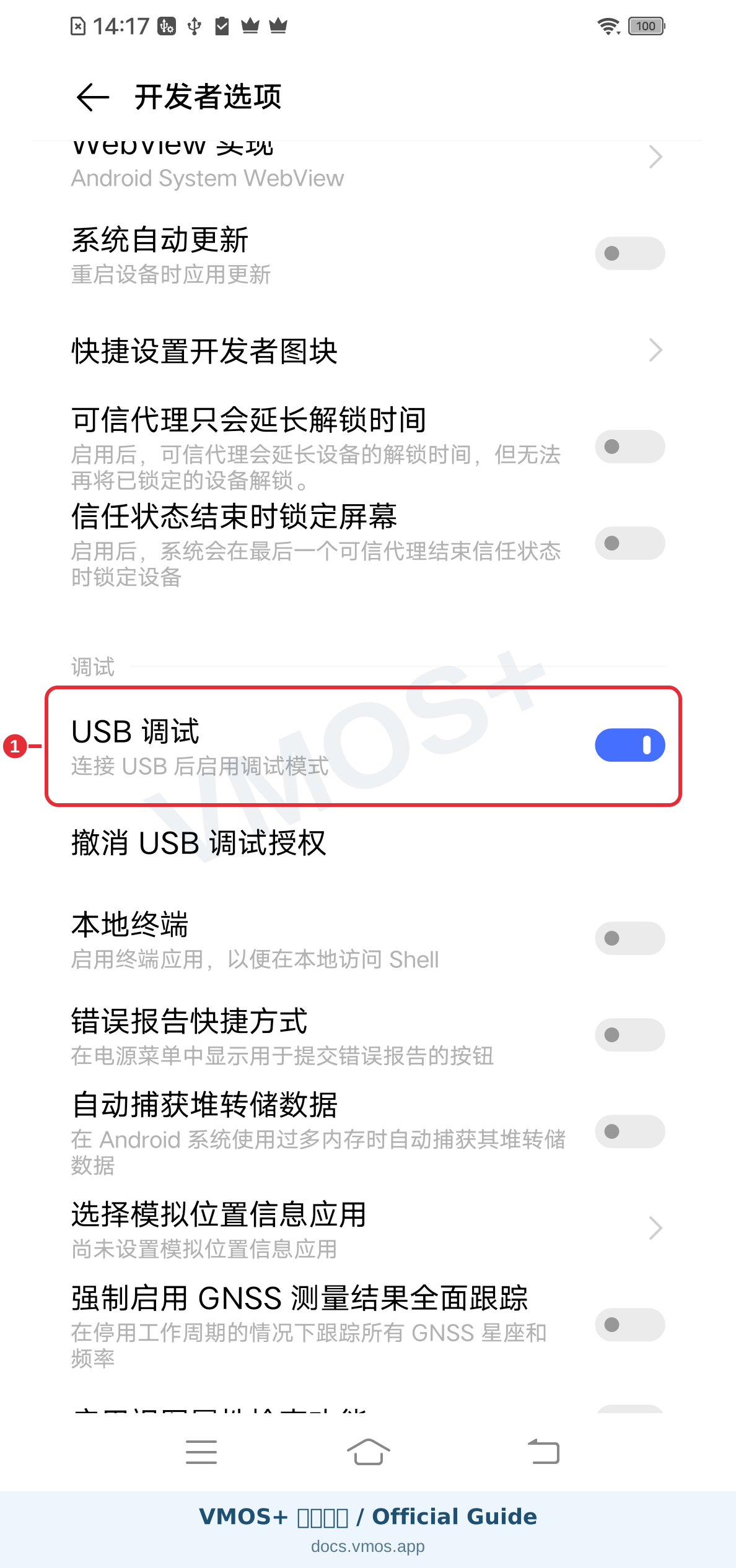
Scroll down to the Debugging section and find USB 调试 (USB debugging). If it is off on your phone, turn it on and read and confirm the system prompt. The final state should match this image: on. Do not select Revoke USB debugging authorizations below it.
Connect the computer and continue background setup
After enabling USB debugging, connect the unlocked phone to the computer with a data-capable USB cable. On first connection, confirm the computer in the phone’s Allow USB debugging? prompt and select Allow. Use Always allow only for your own trusted computer. If no prompt appears, check the cable, USB port and Windows driver first; do not revoke existing authorizations just to repeat the demonstration.
Continue with the illustrated background setup guide: choose an applicable system method, then configure VMOS+ battery use, autostart and background protection and test your virtual machine. USB debugging alone does not remove background restrictions.
Wireless pairing and split-screen animation · Back to phone list