
English
PC — VMOS Assistant guide
VMOS Assistant is a desktop companion for VMOS+ on your phone. Use it when the phone app requests activation, or a virtual machine cannot start or stops after moving to the background. It checks the phone settings that affect VMOS+ one by one.
If VMOS+ is working normally, no additional action is needed. Need the phone app? Download the client.
For step-by-step phone screenshots, see the illustrated background setup guide. It covers Developer options, Android 11+ and Android 14+ methods, battery settings, and background protection.
Cannot find the phone settings? See phone settings by brand for real screenshots with marked targets.
Prefer a complete walkthrough? Watch the video tutorial, covering phone setup and VMOS Assistant.
Download for your computer
Choose the operating system of your computer, not your phone.
Windows
Windows 10/11 · x64
Downloadv0.1.4macOS
macOS 12+
Intel / Apple Silicon
Linux
Ubuntu 22.04+ · x64
v0.1.4Choose your computer’s operating system, install the tool, then connect your phone.
The tool works with Android ADB devices. Which items can be applied automatically depends on the capabilities detected after connecting. Older HarmonyOS / EMUI and Honor MagicOS / Magic UI devices can try the methods below. Native HarmonyOS is not supported.
Screenshots show the current English interface with demonstration devices, addresses and settings. Click an image to enlarge it.
Install and prepare
- Windows: Run the signed
.exeinstaller. The first launch may require an internet connection to install WebView2. - macOS: Extract the signed and notarized ZIP, move VMOS助手 to Applications and open it. Intel and Apple Silicon are supported.
- Linux: Install the
.debon Ubuntu 22.04 or later, or make the.AppImageexecutable and run it. GPG verification is optional.
Basic desktop checks have been performed on Windows 10, macOS and Ubuntu 22.04. Windows 11 and phone-specific connection and runtime behavior still require validation.
Install VMOS+ on the phone and open it once; the assistant only checks and changes VMOS+ settings. Prepare a USB data cable. For wireless connections, connect the computer and phone to the same trusted Wi-Fi network.
No account is required. Choose System, 中文 or English at the top right; by default the interface follows your computer language.
Connect your phone
USB connection (recommended)
The assistant opens in USB mode with a built-in four-step guide, which you can follow before the phone is connected. Choose your phone brand, then:
- Connect a data cable and unlock the phone.
- Enable Developer options by repeatedly tapping the build number under About phone. The guide shows the path for each brand.
- Enable USB debugging in Developer options.
- Allow this computer to debug when the phone asks.
Then click Refresh devices and select the phone to start checking.
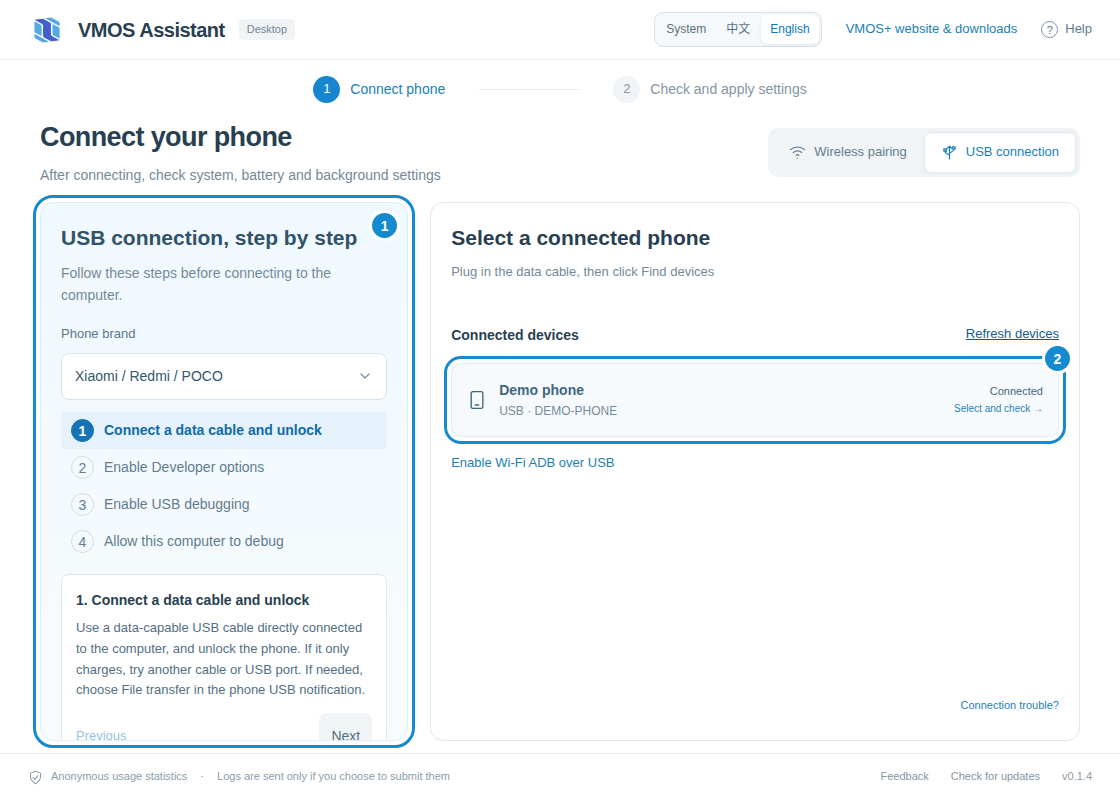
The assistant tells apart no device, unauthorized, offline and USB permission problems. If no authorization prompt appears, unlock the phone, try File transfer mode and check the cable. Windows may require an official manufacturer USB driver; Linux requires appropriate USB permissions.
Wireless pairing
If the phone offers Wireless debugging → Pair device with pairing code, open that screen. In the assistant, switch to Wireless pairing, click Find devices, enter the six-digit code and click Pair and connect. Keep the pairing screen open until pairing completes.
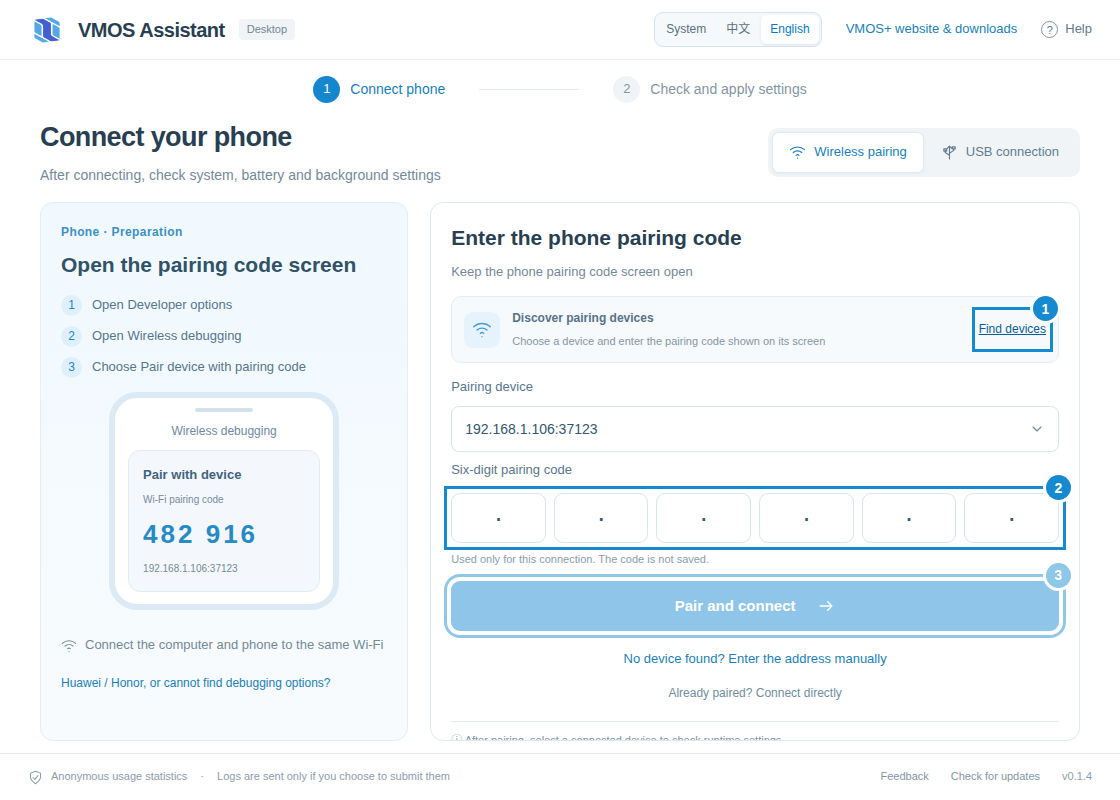
If discovery fails, enter the pairing address manually. For an already paired phone, use Already paired? Connect directly with the connection address on the main Wireless debugging screen: its port may differ from the pairing port.
Switch from USB to Wi-Fi ADB
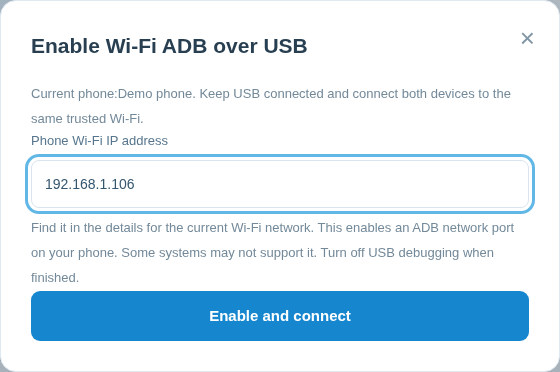
For phones without a pairing-code screen, first connect and authorize over USB. Keep the cable attached, then select Enable Wi-Fi ADB over USB under the device.
Enter the phone IP address from its current Wi-Fi network details and click Enable and connect. Unplug only after the assistant confirms a wireless connection to the same phone. Some systems do not allow this mode. On failure, follow the recovery message and continue over USB. A reboot may require enabling it over USB again. Turn off USB debugging when finished.
Check VMOS+ runtime settings
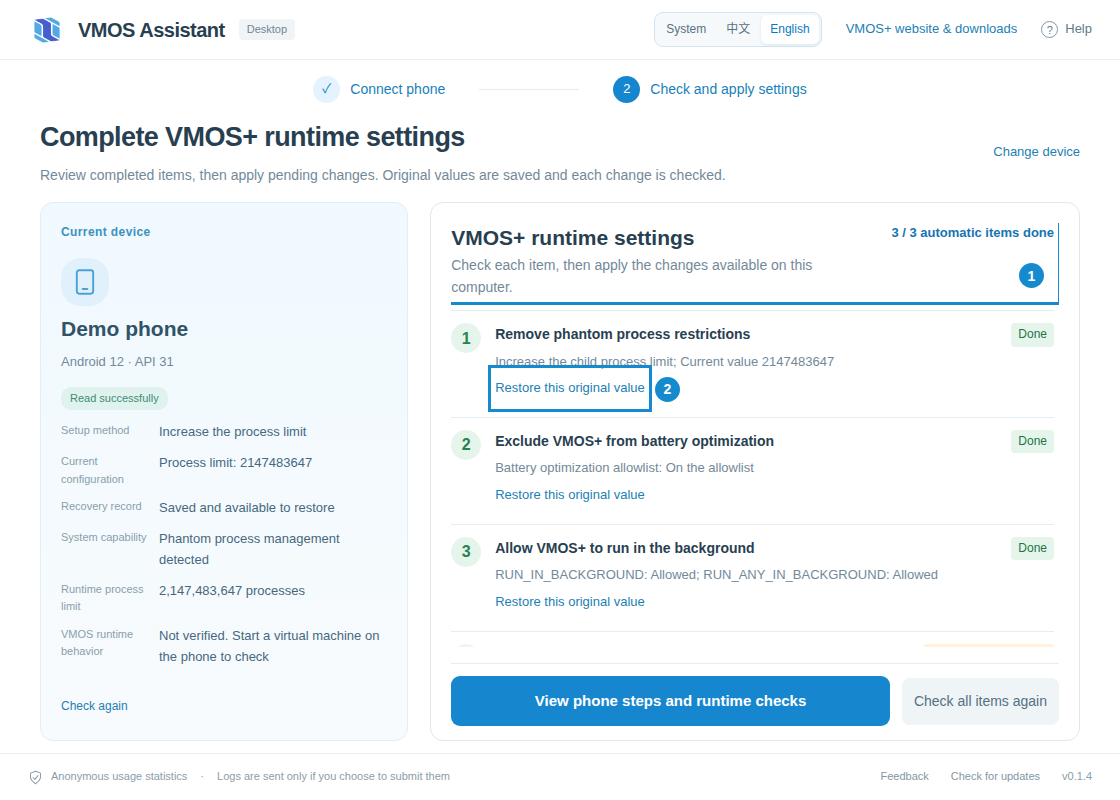
After you select the phone, the assistant lists four items and shows whether each is Done, Pending or needs a phone action:
| Item | What it covers | How it is handled |
|---|---|---|
| 1. Remove phantom process restrictions | System child process limit (Android 12 and later) | Applied from the computer; on Android 14 and later you can also enable “Disable child process restrictions” in phone Developer options |
| 2. Exclude VMOS+ from battery optimization | Adds VMOS+ to the battery optimization allowlist | Applied from the computer |
| 3. Allow VMOS+ to run in the background | System background permissions | Applied from the computer |
| 4. Check manufacturer background protection | Autostart, manufacturer battery management and task locking | Done on the phone |
Read the notice, confirm consent and click Remove restrictions at the bottom. The assistant applies pending items 1–3 in order and skips items that are already done. It saves each original value first and reads the setting again after writing it.
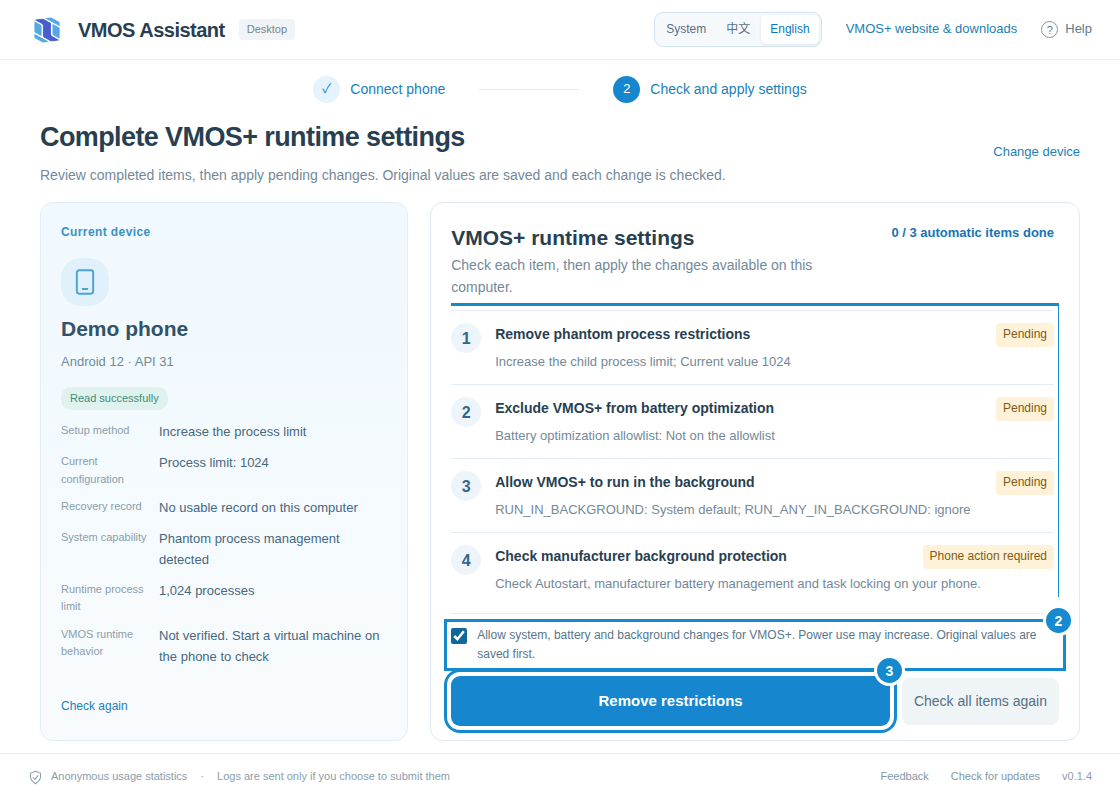
The summary shows how many automatic items are done. If an item fails, its reason is shown separately and recovery records for completed items are kept. Items that are not supported or whose capability is not confirmed are never forced or shown as done.
Item 4: manufacturer background protection
Autostart, manufacturer power saving and recent-app locking have no reliable common check and must be done on the phone. Click Show phone instructions for brand-specific steps, or use Open VMOS+ App info on phone. After checking on the phone, tick “I checked these settings on the phone”. This records your confirmation; it is not an automatic check.
- Xiaomi / Redmi: App info → Battery saver → No restrictions; search for Autostart and allow VMOS+; long-press the VMOS+ card in recent apps and lock it.
- Huawei / Honor: Settings → App launch → VMOS+, turn off automatic management and allow auto-launch, secondary launch and background activity; pull down the VMOS+ card in recent apps to lock it.
- OPPO / OnePlus / realme, vivo / iQOO: allow background activity and autostart for VMOS+ in battery or background power management, and lock it in recent apps.
- Pixel and other stock Android: set battery usage to Unrestricted in App info; skip locking if the system has no such feature.
Menu names vary by phone. On older HarmonyOS / EMUI and Honor MagicOS / Magic UI without wireless debugging, use USB, or switch to Wi-Fi ADB over USB.
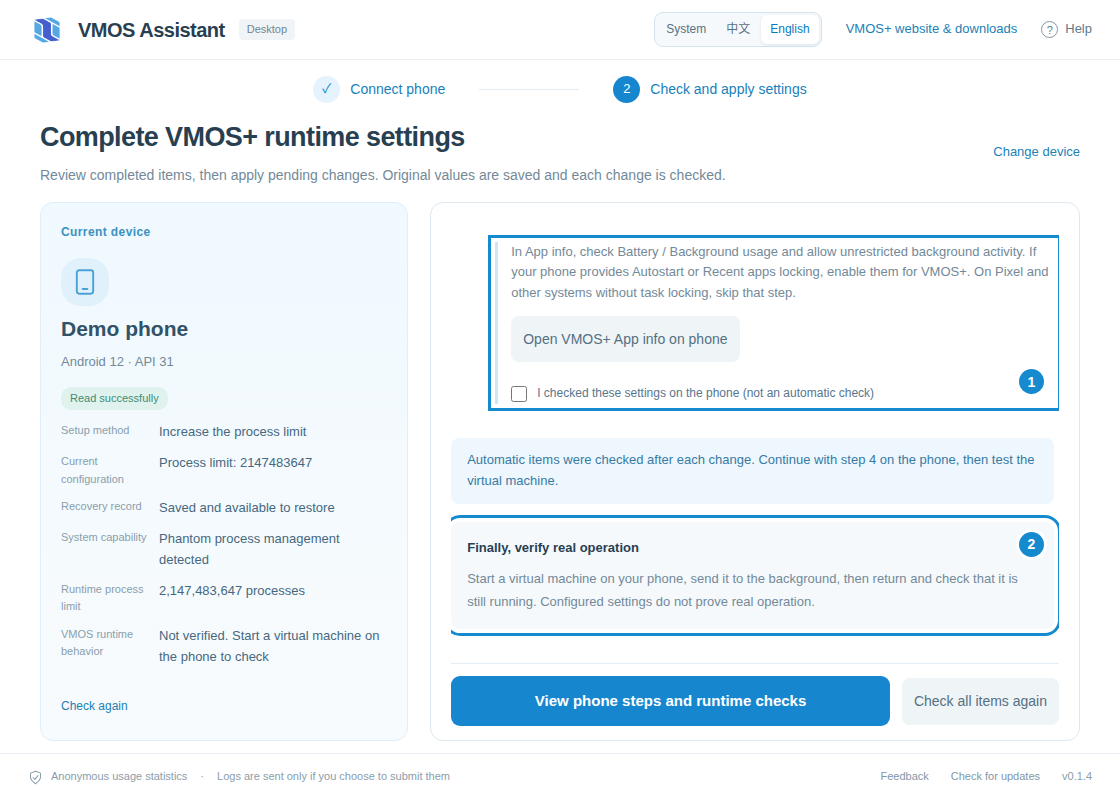
Finally, verify real operation
Start the virtual machine on your phone, send it to the background and return to confirm it is still running. A completed item only means the configuration was written and read back. It does not prove that all background restrictions are removed, and Check all items again only rechecks configuration.
Restore settings and finish
Items changed by the assistant show Restore this original value, which restores the value saved before the change and reads it back. This does not undo autostart, power-saving or locking settings changed manually on the phone.
Results become invalid after the phone disconnects, you switch devices or the system is updated; check again. If a recovery record does not match the current system, the assistant stops and asks you to review it first. Turn off unused wireless / USB debugging when finished and revoke the computer authorization if needed.
Troubleshooting and feedback
| Situation | What to try first |
|---|---|
| No device appears | Follow the USB guide: cable, Developer options, USB debugging and authorization. For wireless, use the same Wi-Fi; company or guest networks may isolate devices |
| VMOS+ is not installed | Install and open VMOS+ on the phone once, then click Check all items again |
| Item 1 says to enable it on the phone | No computer method is available for this Android version yet. Enable “Disable child process restrictions” in Developer options, then check again |
| All items are done but VMOS+ still stops | Complete item 4 on the phone, test the virtual machine and check available memory |
| No restore option | Use the same computer, and check whether the item was changed by the assistant |
| Still not solved | Click Feedback at the bottom of the assistant, describe the issue and optionally attach local diagnostic logs |
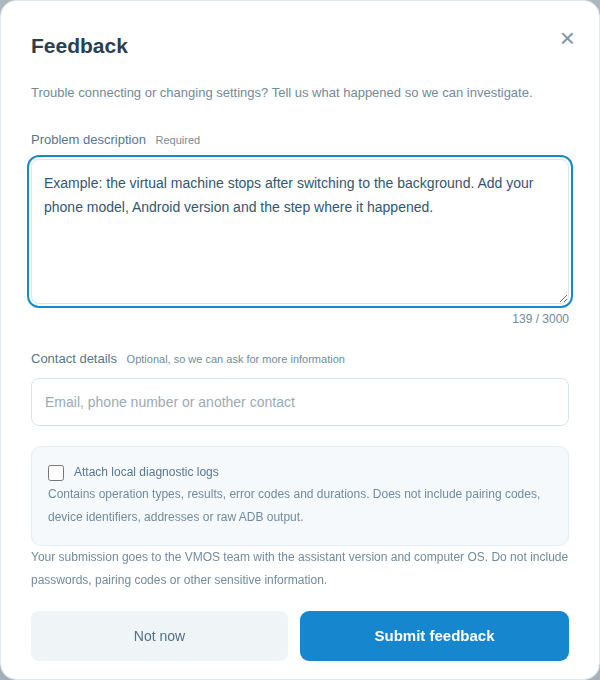
Include your phone model, Android version and the step where the issue happened. Local diagnostic logs are optional; no manual log export is required.
Ready to connect?
Open VMOS Assistant, connect your phone and complete the four items. Devices already working normally do not need repeated changes.